Wednesday, January 3, 2018
How to create batch download using Orbit Downloader v1 5 3
How to create batch download using Orbit Downloader v1 5 3
Web sites that have many files often use file-naming conventions whereby they name their files using a series of numbers or letters. For example a MP3 site may name the MP3 files as hot-track1.mp3, hot-track2.mp3 � hot-track12.mp3. From this you can see that they are just a series of MP3s numbered from 1 to 12. Or, a photo sharing site may name its photos as tree-a.gif, tree-b.gif � tree-z.gif. From this, you can see that they are just a series of photos numbered from a to z.
Using Orbit Downloader, you can create a batch download to download a series of downloads from website easily. And there is an example tutorial below:
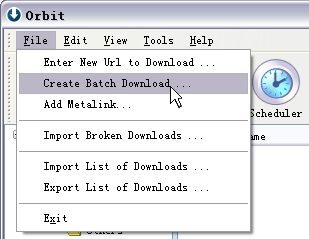
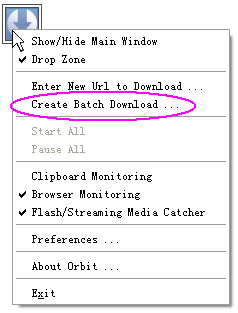
1. You can open the �Create batch download� dialog through arbitrary way below:
(1) From the main menu �File�-->�Create batch download��:
(2) From the tray icon�s context menu:

(3) From the Drop Zone�s context menu:
2. Configure the �Create Batch Download� dialog to download series downloads.
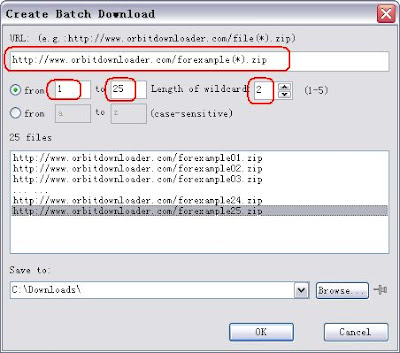
(1) If there is a series of download URLs like these:
http://www.orbitdownloader.com/forexample01.zip
http://www.orbitdownloader.com/forexample02.zip
�
http://www.orbitdownloader.com/forexample25.zip
You can configure the �Create batch Download� dialog like this below to download the series of zip-files:
(2) If a series of download URLs like these:
http://www.orbitdownloader.com/forexample1.jpg
http://www.orbitdownloader.com/forexample2.jpg
�
http://www.orbitdownloader.com/forexample25.jpg
You can configure the �Create batch Download� dialog like this:
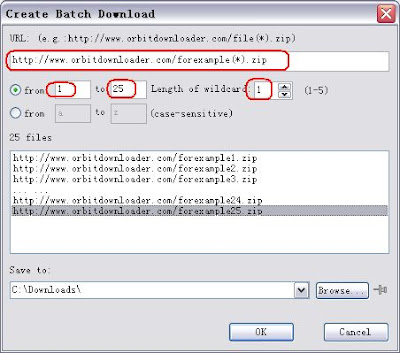
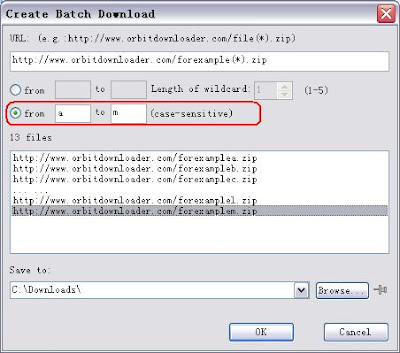
?3?The same way,If the series download URLs like these:
http://www.orbitdownloader/forexample-a.gif
http://www.orbitdownloader/forexample-b.gif
�
http://www.orbitdownloader/forexample-m.gif
You should configure it like this: